
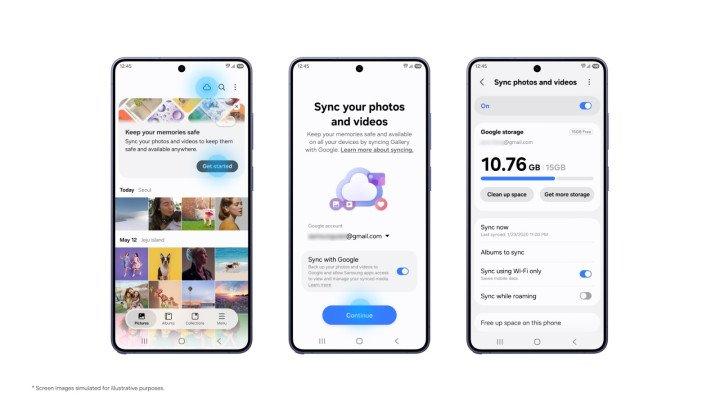
Sync photos and videos with the Samsung and Google accounts you already use
Manal Saleh
As people capture, store and
revisit memories across multiple devices like mobile phones and tablets, keeping
those moments safe and easily accessible has become increasingly important. To help
meet this growing need, Samsung offers a Gallery sync service in collaboration
with Google.[1]
Samsung Gallery sync with
Google storage gives you access to photos and videos across supported Galaxy
devices. Getting started is simple. If your Samsung and Google accounts are set
up on the device, you can enable sync in Gallery without creating a separate
cloud account.
You can also move easily between
devices while keeping your photos and videos within reach. For example, take
photos on your Galaxy phone and view them in Gallery on your tablet. Sign in
with the same Samsung and Google accounts and enable sync on each supported
device.[2]
When setting up a new Galaxy
device, sign in with the same Samsung and Google accounts used for Gallery sync
on your previous device. Turn on sync to see previews of your photos and
videos.[3]
If you need an original file, you can select the file you want and download it
to your device easily.
To help you make room for more
memories, Samsung introduces a new feature that lets you free up space on your device.[4]
Once photos and videos are synced to Google storage, you can use the “Free up
space” feature to remove the original files from the device and free up device
storage, while keeping thumbnails visible in Gallery.

Gallery sync uses your Google
account's available storage, which is shared with Gmail, Google Drive and
Google Photos. Google accounts include up to 15 GB at no cost.[5]
Support has started with
select Galaxy devices running One UI 9 and will expand in phases. To set up
sync, tap the Cloud icon in Gallery or tap “Get started” on the tip card, or go
to Gallery Settings, turn on “Sync photos and videos,” and follow the on-screen
instructions.


Frequently Asked Questions
|
Q: What is Samsung Gallery sync with Google
storage, and what are its benefits? A: Samsung Gallery sync stores photos and videos in Google storage
linked to your Google account, allowing you to access them across supported
Galaxy devices. Each device must use the same Samsung and Google accounts and
have sync enabled. On a new Galaxy device, you can view previews without
downloading your full synced library first. |
|
Q: Do I need a different app or a new account? A: Samsung Gallery sync works in the Gallery app. With Samsung and
Google accounts set up on your device, you do not need a separate cloud
account. |
|
Q: Which devices and markets support
Gallery sync with Google storage? A: Samsung Gallery sync is available on
select Galaxy phones and tablets running One UI 9, with support expanding in
phases. Availability varies by market. |
|
Q: How do I turn on Gallery sync with Google
storage? A: On a supported Galaxy device, tap the Cloud icon in Samsung Gallery
or open Gallery Settings and turn on “Sync photos and videos.” Follow the
on-screen instructions. For access on another supported device, sign in with
the same Samsung and Google accounts and enable sync there. |
|
Q: Do I need to download my whole library onto a
new Galaxy device? A: No. On a supported Galaxy device, sign in with the same Samsung and
Google accounts used for Gallery sync on your previous device, then enable
sync. You can browse previews of your synced photos and videos while the
originals stay in Google storage. |
|
Q: How much storage can I use for Samsung Gallery
sync? A: Google accounts include up to 15 GB of free storage, shared by
Gallery sync, Gmail, Google Drive and Google Photos. The amount available for
Gallery sync depends on how much storage is already in use. More storage is
available through Google One's paid plans. If you subscribe to Google One,
select the account linked to your plan. |
|
Q: Do photos and videos in my Google account
appear in Samsung Gallery? A: At launch, Samsung Gallery only shows photos and videos synced
through Gallery after you enable Google storage sync. Content stored in
Google storage before then does not appear automatically. |
|
Q: What happens to photos and videos I synced from
Samsung Gallery to OneDrive? A: Photos and videos synced to OneDrive remain accessible through its
app or website. Direct sync between Samsung Gallery and OneDrive ended on Sept.
30, 2026. |
|
Q: What happens if I delete a synced photo or
video in Samsung Gallery? A: Deleting a synced item in Samsung Gallery also removes it from the
linked Google storage and other connected Galaxy devices signed in with the
same Samsung and Google accounts. |
[1] The service may not be available in
some markets due to regional service availability restrictions. The service is available
on select devices running One UI 9, with support expanding to additional Galaxy
devices in phases.
[2] At launch, cloud photos and videos shown in
Samsung Gallery are limited to content synchronized through Gallery after the
service is enabled. Photos and videos previously stored in Google storage will
remain in the cloud but will not automatically appear in Samsung Gallery.
[3] The new Galaxy device must be signed in with the
same Samsung and Google accounts used for Gallery sync on the previous device.
When accessing synced content on a new Galaxy device, original photos and
videos remain stored in the cloud, with previews displayed on the device.
[4] Feature availability
may vary by market and device model.
[5] Google accounts include up to 15 GB of storage at
no cost, shared across Gmail, Google Drive and Google Photos. Available space
depends on existing usage. Gallery sync does not add a separate storage
allowance.







كن أول من يشارك رأيه
ابدأ النقاش حول هذه القصة.